Permanent makeup needs a signed consent and a short medical history before the first session. Asking for all of it during online booking makes the booking long on a phone. Beauty Art Pro, a beauty studio in Geneva, does it differently: clients book in a few taps, and the consent form arrives with the booking confirmation email. Every signed form lands on the booking it belongs to.
The setup at Beauty Art Pro
- One permanent makeup consent form with 14 questions in 2 sections: contact details, medical history and the consent itself.
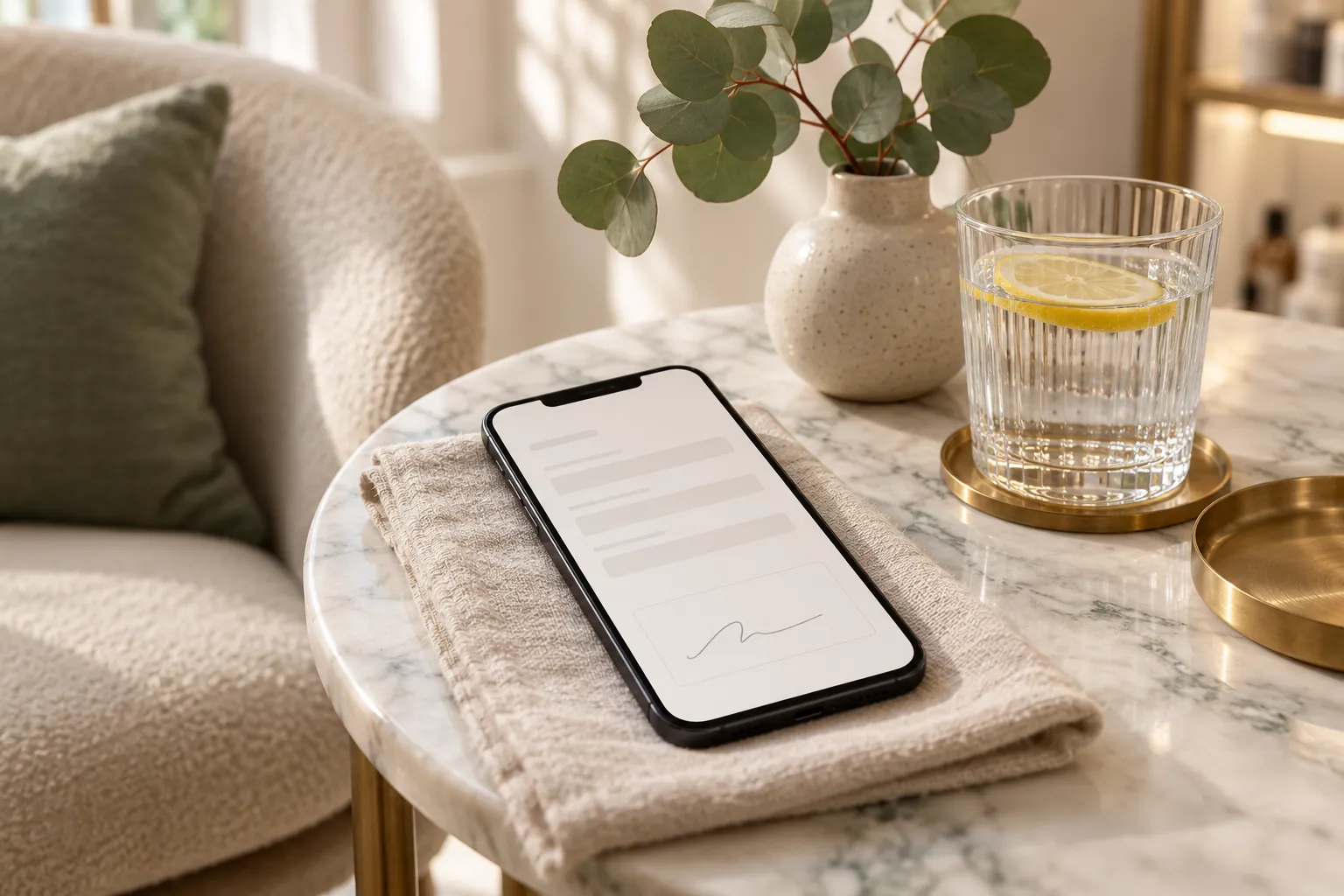
- A signature is required, and the client signs on their phone with a finger.
- The form is in Standalone (public link) mode with Email this form with bookings switched on, so it is never part of the booking steps.
- It is attached to the studio's 18 permanent makeup services, from brows to lips.
- Those 18 services have their own confirmation email, which places the list of forms inside the studio's wording.
- The reminder sent the day before asks again only while the form is still unsigned.
- Every signed form received so far is linked to its booking.
Set it up in Lorenly
- Go to Settings → Forms and create the form. Group the questions in sections and mark the ones that must be answered as required.
- Turn on Require signature and write the Consent agreement in each language you offer.
- Set the Mode to Standalone (public link) and switch on Email this form with bookings.
- Under Attach to (publishes live), pick your permanent makeup services or their category, then choose Save & publish.
- Optional: in Settings → Templates, add a New template for the Booking confirmation, choose Replaces the default for some services under Used for, tick the same services and place the forms list with Insert shortcode.
What the client sees
The client books the treatment as usual. The confirmation email has a Fill in link for the consent form. It opens a page with the business name and colours, in the client's language, with their name and email already filled in. They answer, sign with a finger or the mouse and submit, then receive a copy of their answers by email. If they have not signed yet, the reminder the day before brings the link back.
The full step-by-step guide is in the help centre: Send a form with the booking confirmation email.